Introduction
In many modern applications, text doesn’t always arrive as plain, selectable characters. It often appears inside images like scanned documents, screenshots, ID cards, receipts, or even video subtitles. In these cases, the text looks readable to humans but is invisible to software systems that expect digital text.
Optical Character Recognition (OCR) helps bridge that gap by detecting and converting text from images into editable and searchable form. This makes it possible to process documents automatically, extract data, enable search, or translate visual text.
Still, OCR accuracy heavily depends on image quality. Noise, low contrast, shadows, compression artifacts, and stylized fonts often lead to poor recognition. The key to reliable results is not just choosing the right OCR engine but preparing the image properly.
By applying a few preprocessing steps such as contrast adjustment, thresholding, and noise reduction, you can greatly improve recognition quality and reduce post-processing work.
This post shows why preprocessing matters and how to use OpenCV and Tesseract to turn messy text images into clean, readable text.
Why OCR fails on real-world images
OCR works by combining image analysis, pattern recognition, and machine learning. A typical OCR pipeline involves preprocessing the image, detecting text regions, segmenting characters, recognizing each symbol (often with neural networks or pattern matching), and post-processing the output using dictionaries or heuristics.
The core of modern OCR relies on Deep Neural Networks (DNNs), which are essential for handling the high variability found in real-world images, such as diverse fonts, styles, and poor image quality.
Even modern OCR engines like Tesseract or EasyOCR rely heavily on the quality of the input image. Common issues in real-world images include:
- low contrast between text and background
- compression artifacts or blur
- complex fonts with shadows or outlines
- language and character set limitations
- partially connected characters
- text skew / alignment
- multiple colors or transparency
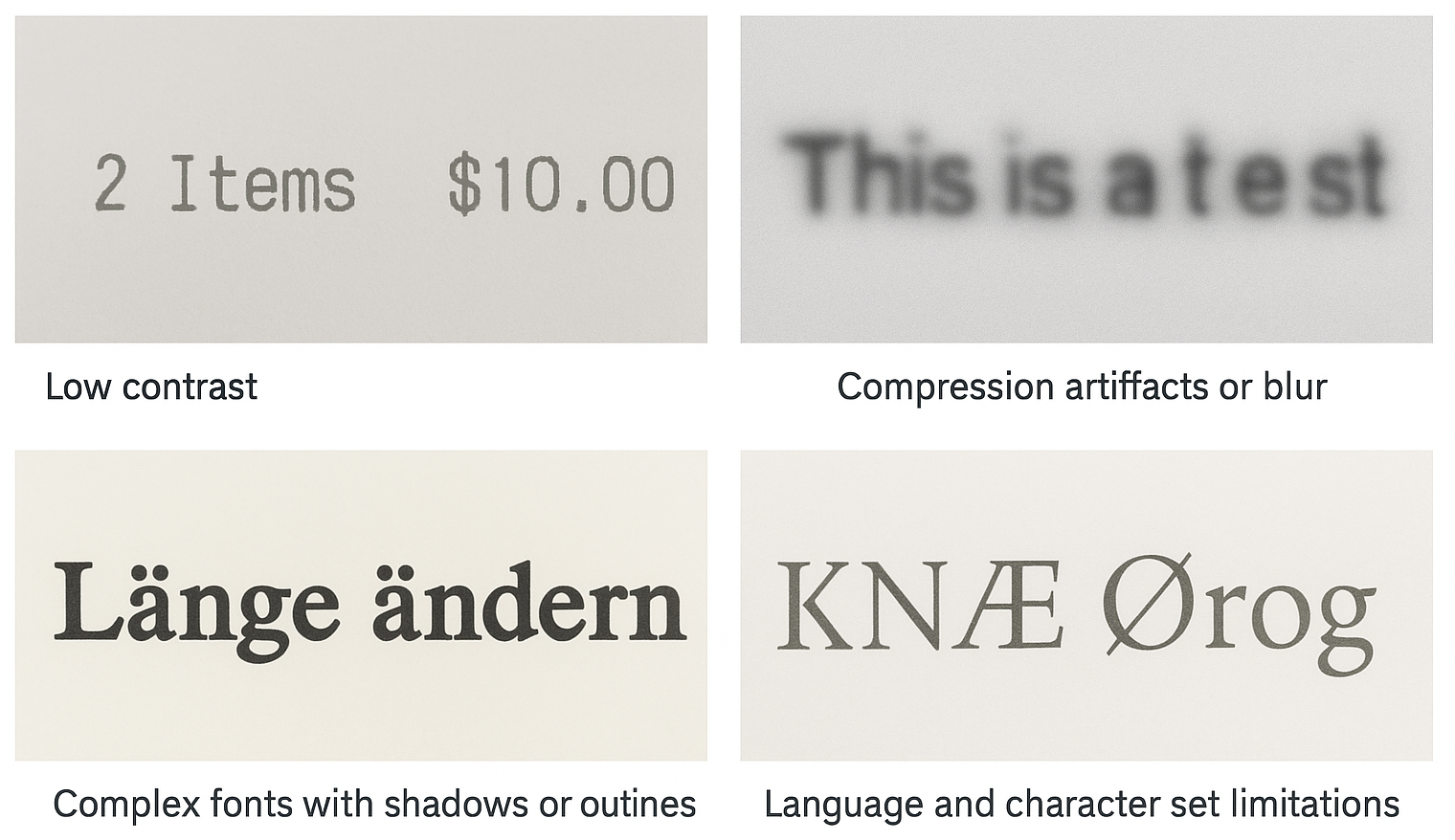
These factors make it difficult for OCR to correctly detect and classify characters. For example, a scanned document or screenshot may produce garbled output, while applying simple preprocessing steps like contrast enhancement and noise removal can dramatically improve recognition.
The key takeaway is that OCR accuracy depends not just on the engine itself but on how clearly the text is presented to it. Preprocessing helps the OCR “see” the text more clearly, increasing reliability and reducing errors.
Preprocessing techniques
To better understand how different image preprocessing filters affect OCR results, I’ve created a small Python “playground” script available on GitHub.
It lets you toggle various OpenCV filters on and off - such as contrast enhancement, Gaussian blur, thresholding, morphology operations, and noise reduction and instantly see how each transformation impacts text recognition accuracy.
👉 Check out the repository here: GitHub – ocr-preprocessing-playground
Below are some of the most effective and commonly used preprocessing filters that can significantly boost OCR accuracy. You don’t need to apply all of them. The right combination depends on your source image characteristics.
1. Grayscale conversion
Almost every OCR workflow starts with converting the image to grayscale.
It removes unnecessary color information, simplifying the input and making it easier for later filters to distinguish text from background.
2. Resize / Scaling for OCR
Resizing adjusts the image dimensions to a target width while preserving the aspect ratio, ensuring text is large enough for OCR to recognize clearly. Proper resizing prevents tiny or blurred characters, improving recognition accuracy without unnecessarily enlarging the image.
3. Contrast enhancement (CLAHE)
CLAHE (Contrast Limited Adaptive Histogram Equalization) improves the local contrast of an image, making faint or uneven text more distinguishable from the background. This helps OCR engines detect characters more reliably, especially in screenshots or video frames with variable lighting.
4. Adaptive thresholding
Adaptive thresholding is useful when the background illumination is uneven. Instead of a single global threshold, this method calculates thresholds for small regions of the image, making faint or shadowed text more visible to OCR engines.
5. Noise reduction
Real-world images often contain small “salt-and-pepper” noise or compression artifacts.
- Median blur (3×3) is ideal for removing tiny white/black specks while keeping text intact.
- Gaussian blur can be used carefully for mild smoothing, but avoid large kernels to prevent font deformation.
6. Removing unwanted artifacts (“snow”)
Sometimes subtitles or scanned text have small unwanted white dots (“snow”) on dark backgrounds. A safe approach is to remove only the brightest pixels without affecting thin characters.
7. Invert colors
If text is lighter than the background, inverting colors helps OCR engines read it correctly:
- Converts white text on black to black text on white, which most OCR engines handle better.
- Always check the expected input of your OCR engine.
Conclusion
OCR accuracy depends not just on the engine, but on preparing your images properly. Real-world images often contain noise, uneven lighting, or small artifacts that make text hard to read.
Using preprocessing steps like grayscale conversion, resizing, mild contrast enhancement, adaptive thresholding, gentle noise reduction, and optional color inversion can make text much clearer for OCR.
The key is to apply filters gently and preview results to avoid merging or distorting letters. With the right combination, even challenging images become reliably machine-readable, saving time and reducing errors.